Desde asignar un lab a tu grupo hasta usar todas las herramientas del panel en vivo: mensajes, teletransporte, modo demo y resultados.
Elige un lab y asígnalo a tu grupo
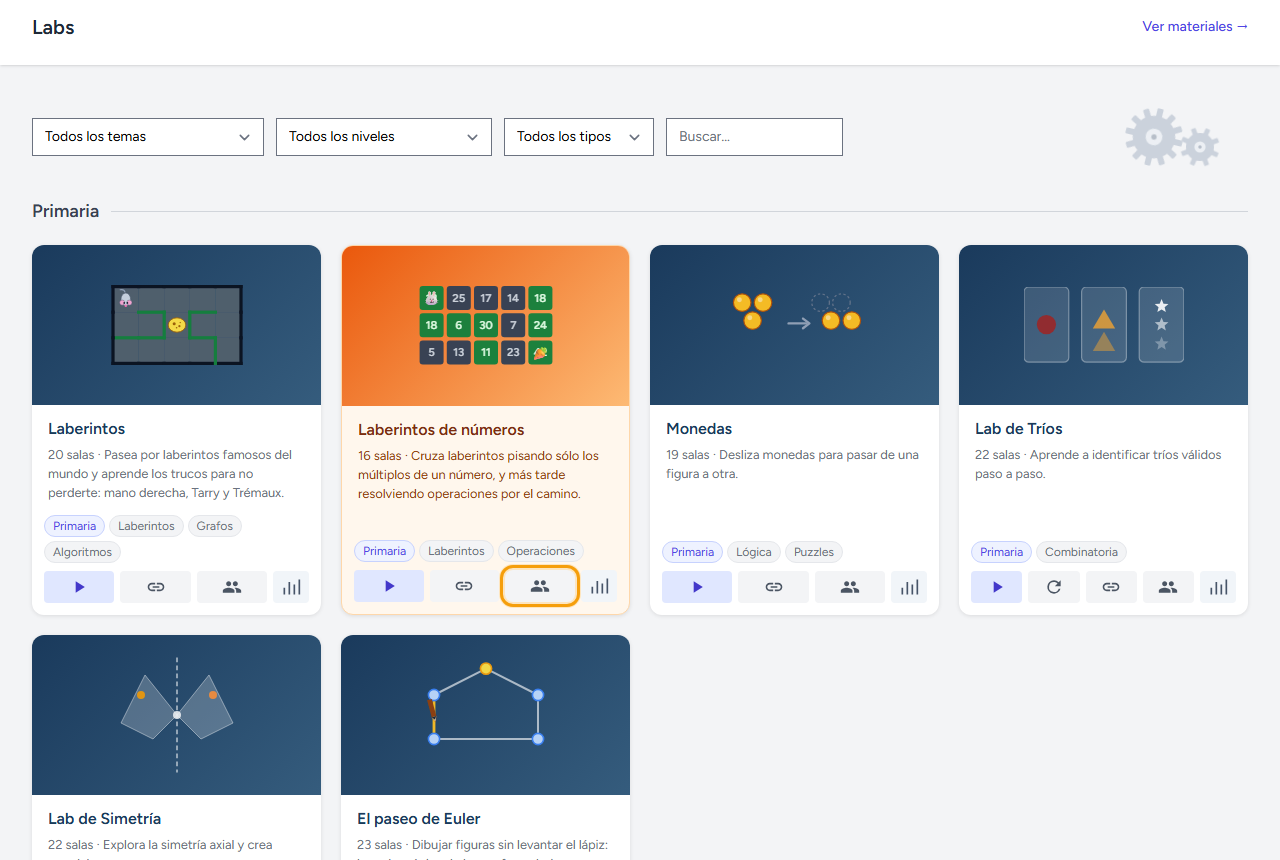
En el catálogo de Labs, cada tarjeta tiene un icono de personas — ábrelo para asignar ese lab a uno de tus grupos.
Elige el grupo
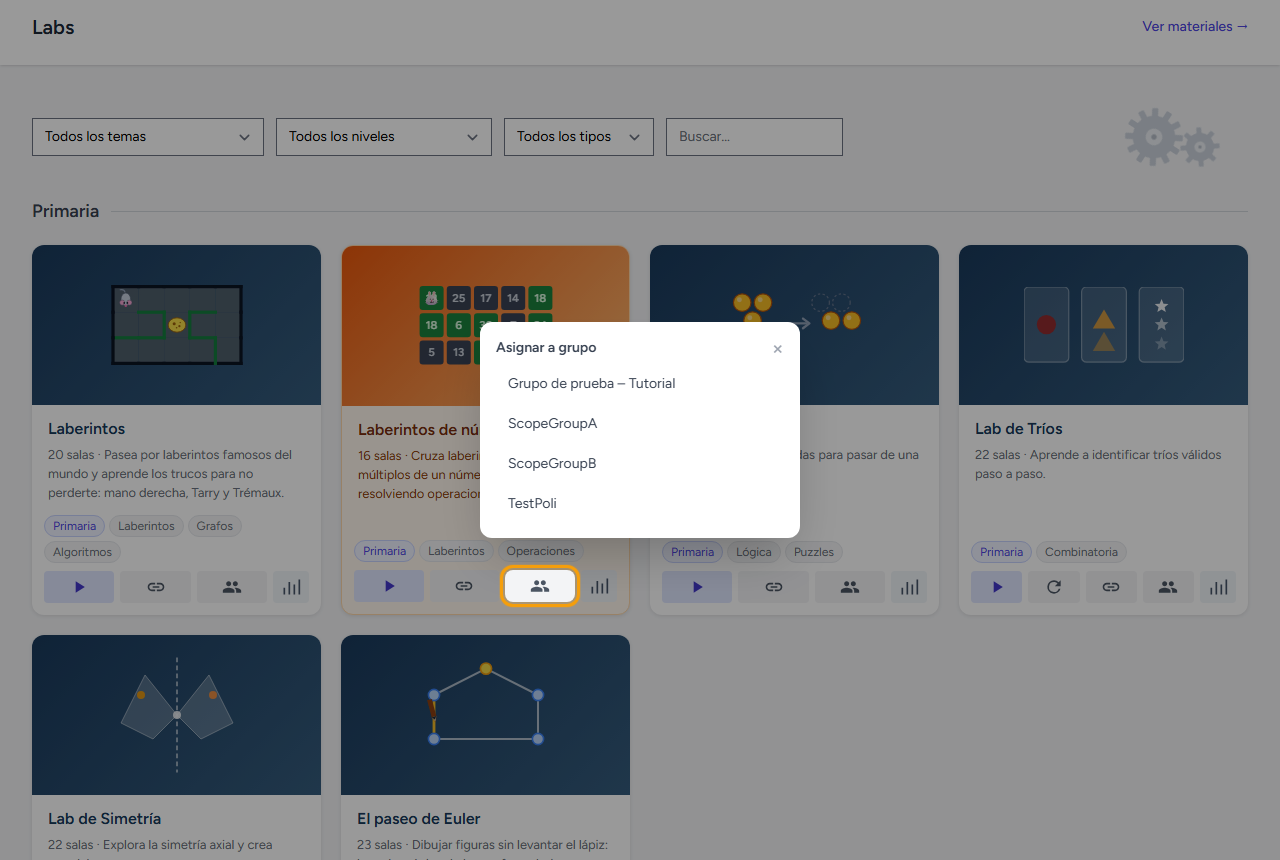
El desplegable solo lista tus propios grupos (o todos, si eres administrador). Un clic sobre el nombre crea una instancia del lab exclusiva para esa clase.
Aterrizas en el panel en vivo
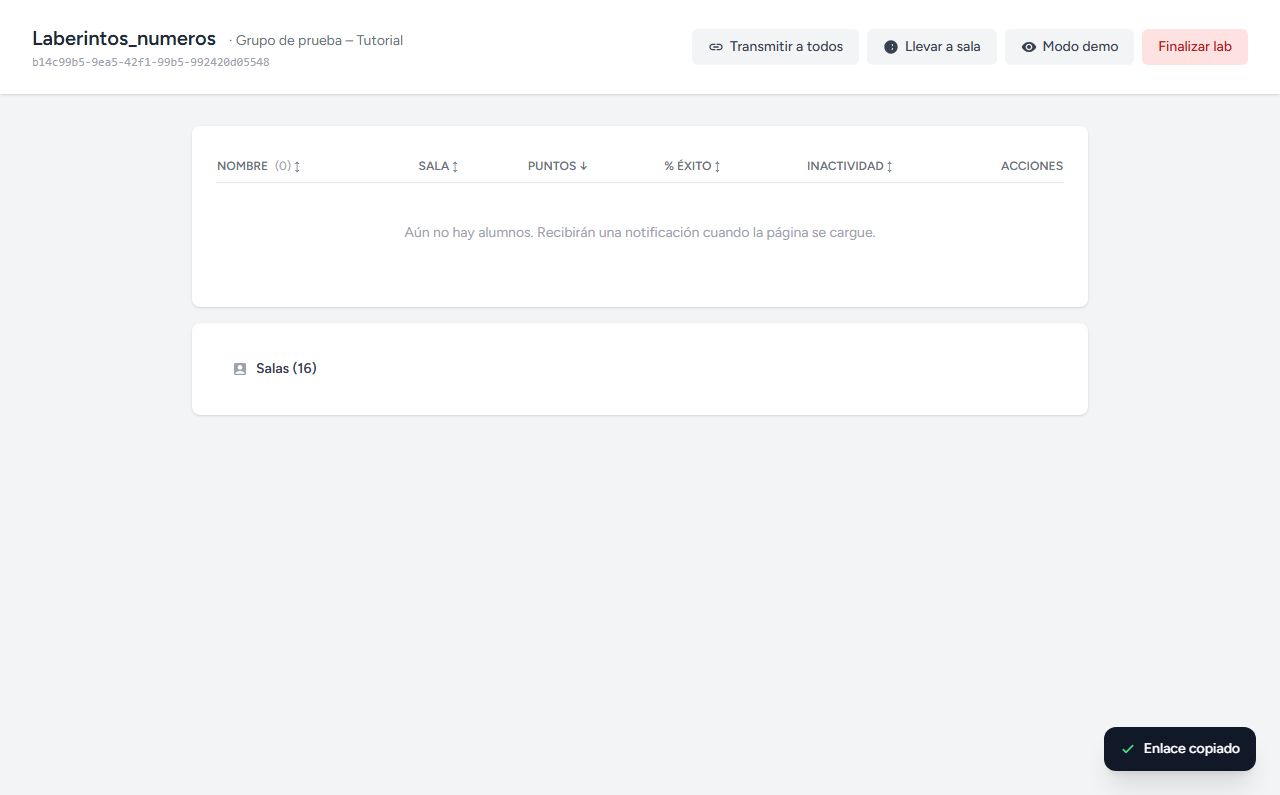
Nada más crearlo entras en su panel de seguimiento — vacío por ahora, a la espera de que se unan los alumnos.
El alumno recibe la invitación al instante
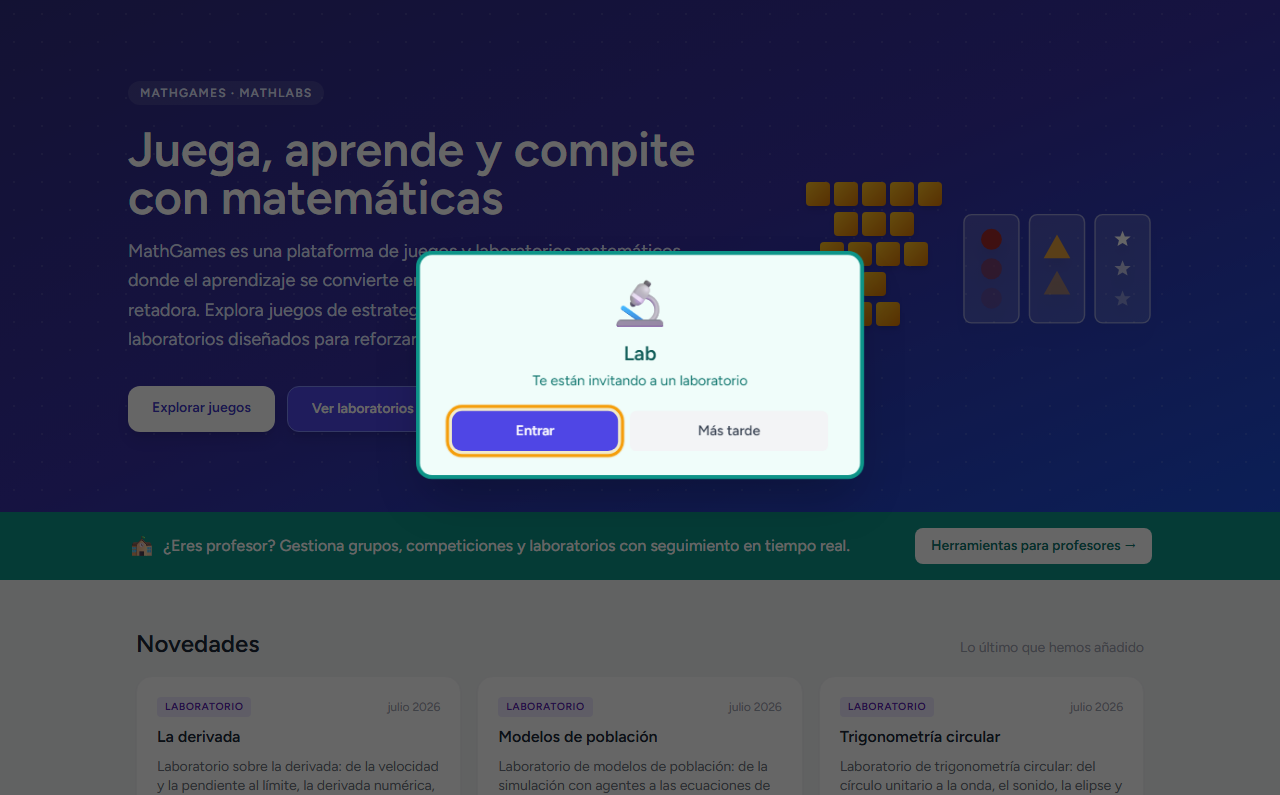
En cuanto el alumno abre cualquier página de MathGames, una tarjeta le avisa de que hay un laboratorio esperando. Un clic en Entrar y ya está dentro de la primera sala.
Juega sala a sala
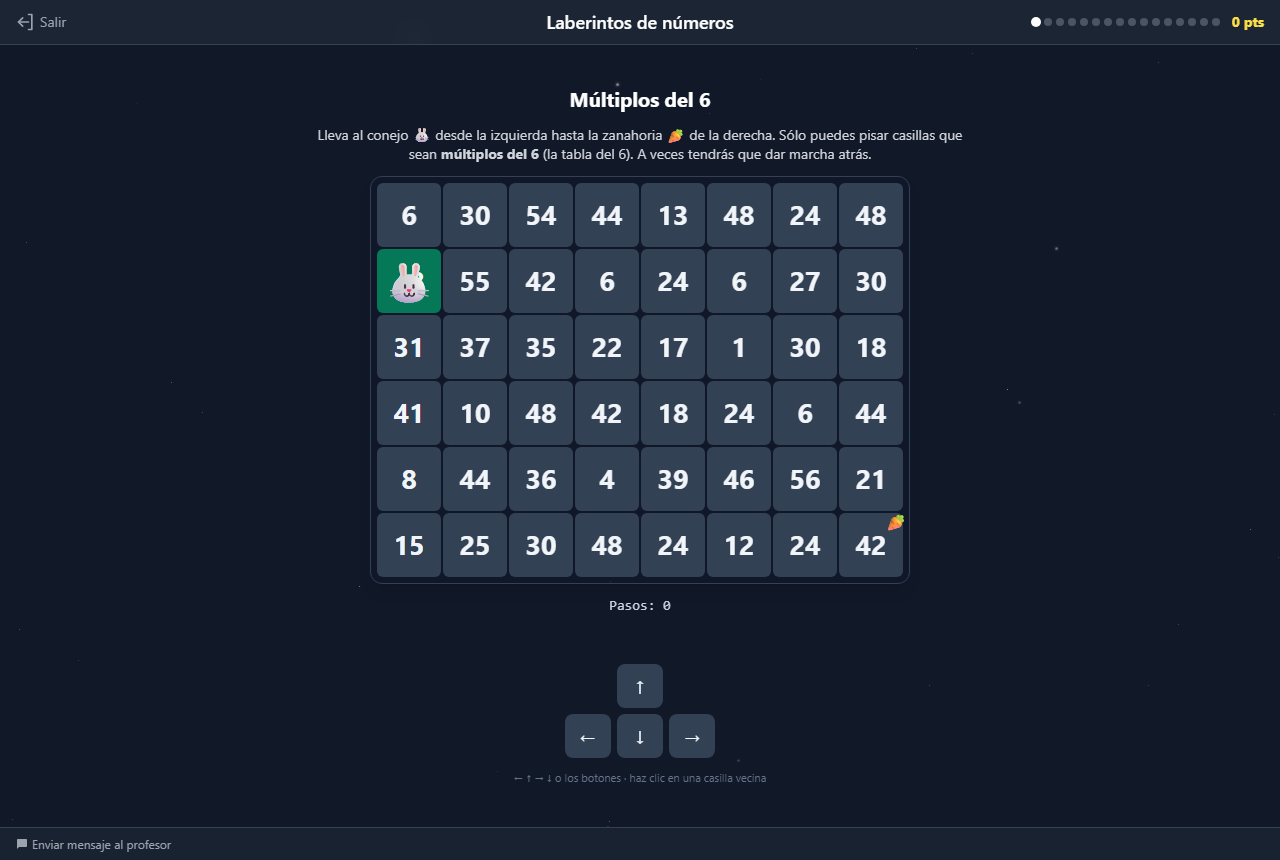
Cada sala tiene su propio reto. El alumno avanza a su ritmo; tú ves su progreso en directo desde el panel.
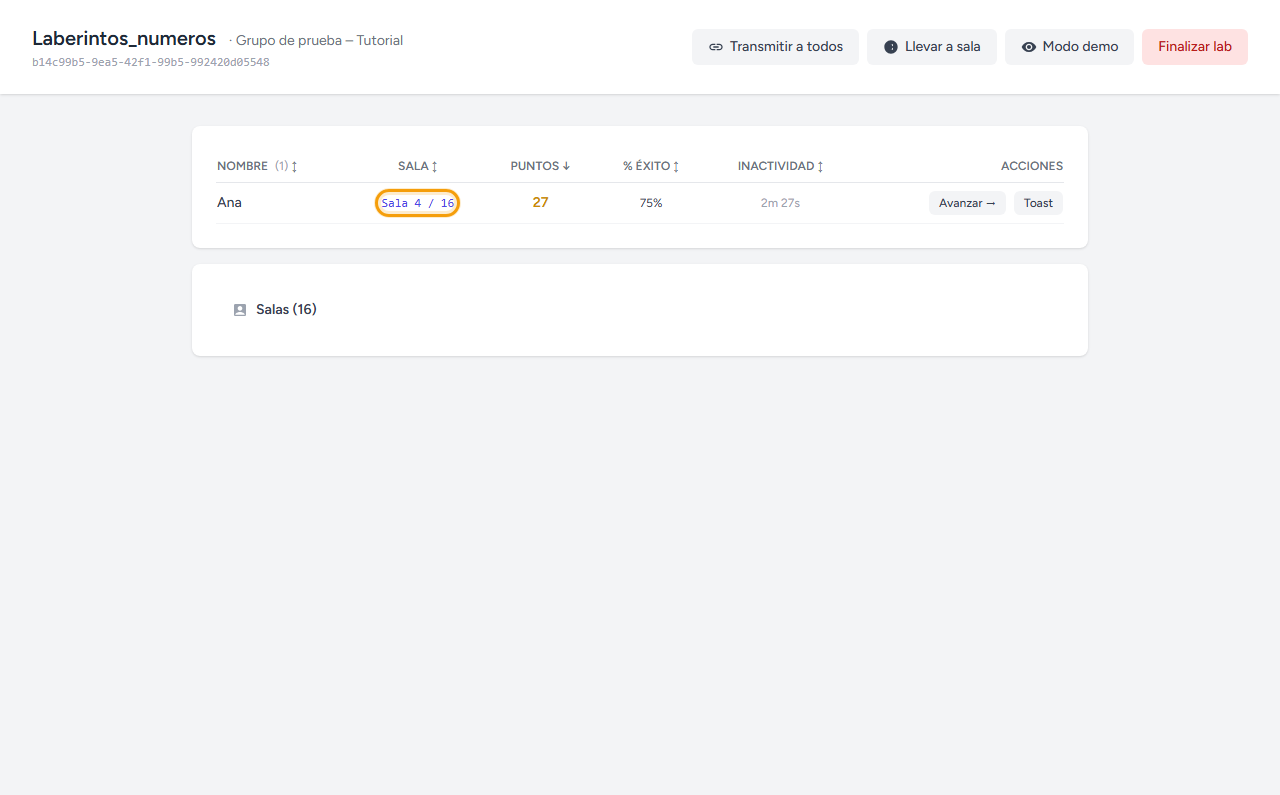
Sigue sala, puntos y % de éxito
La tabla se actualiza sola: en qué sala está cada alumno, sus puntos y qué porcentaje de sus respuestas fueron correctas a la primera.
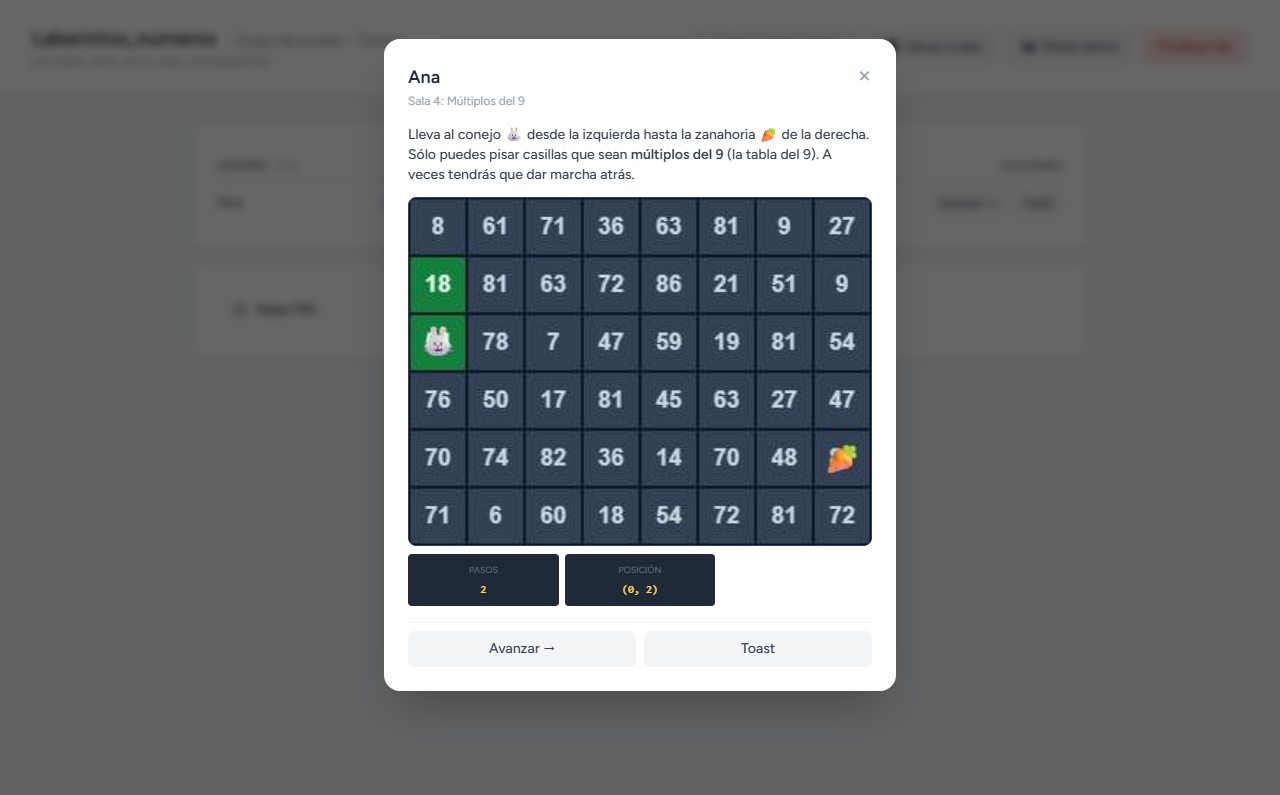
Mira exactamente lo que ve un alumno
Pulsa sobre la sala de cualquier alumno para abrir una ventana con el enunciado exacto que tiene delante — útil para ayudar a quien lleva un rato sin avanzar, sin tener que acercarte a su pantalla.
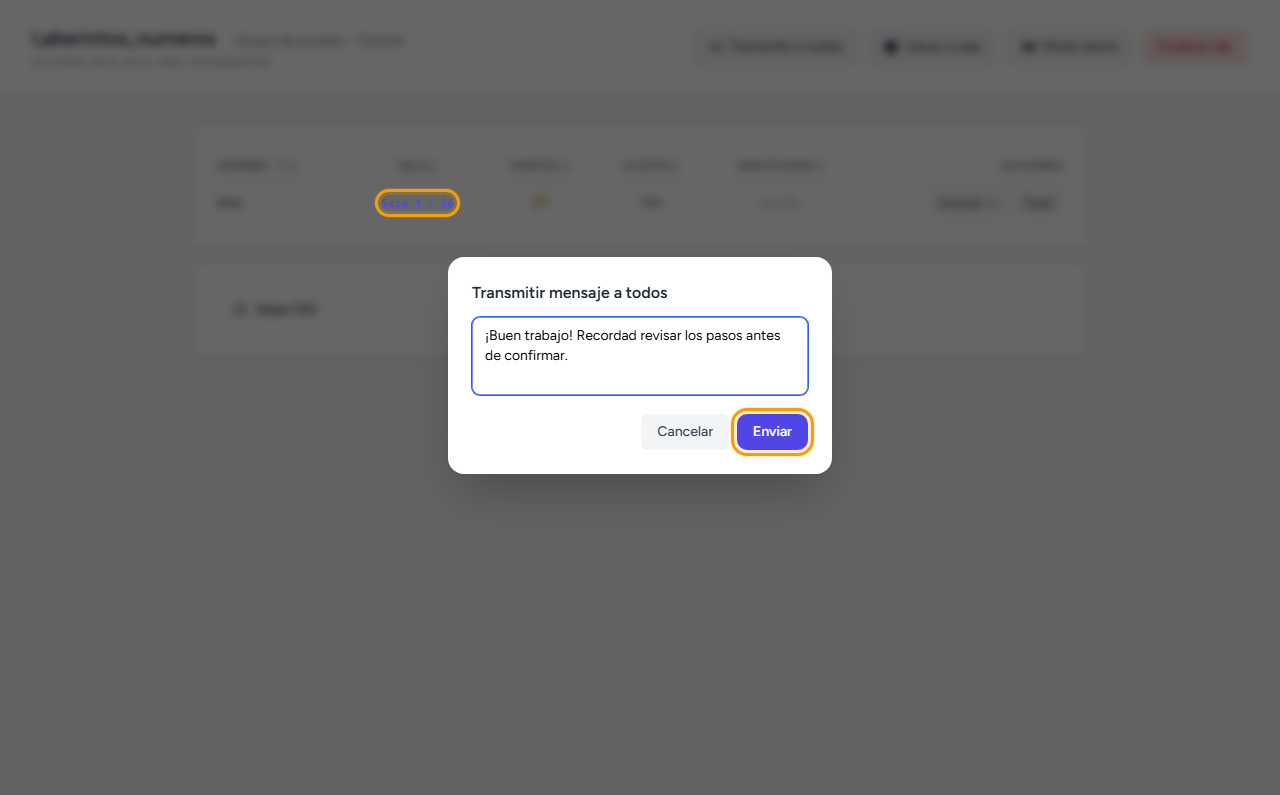
Transmite un mensaje a toda la clase
El botón Transmitir a todos manda un aviso corto que aparece en la pantalla de cada alumno — una pista general, un aviso de tiempo, lo que necesites decir a todos a la vez.
Lleva a todos a una sala concreta
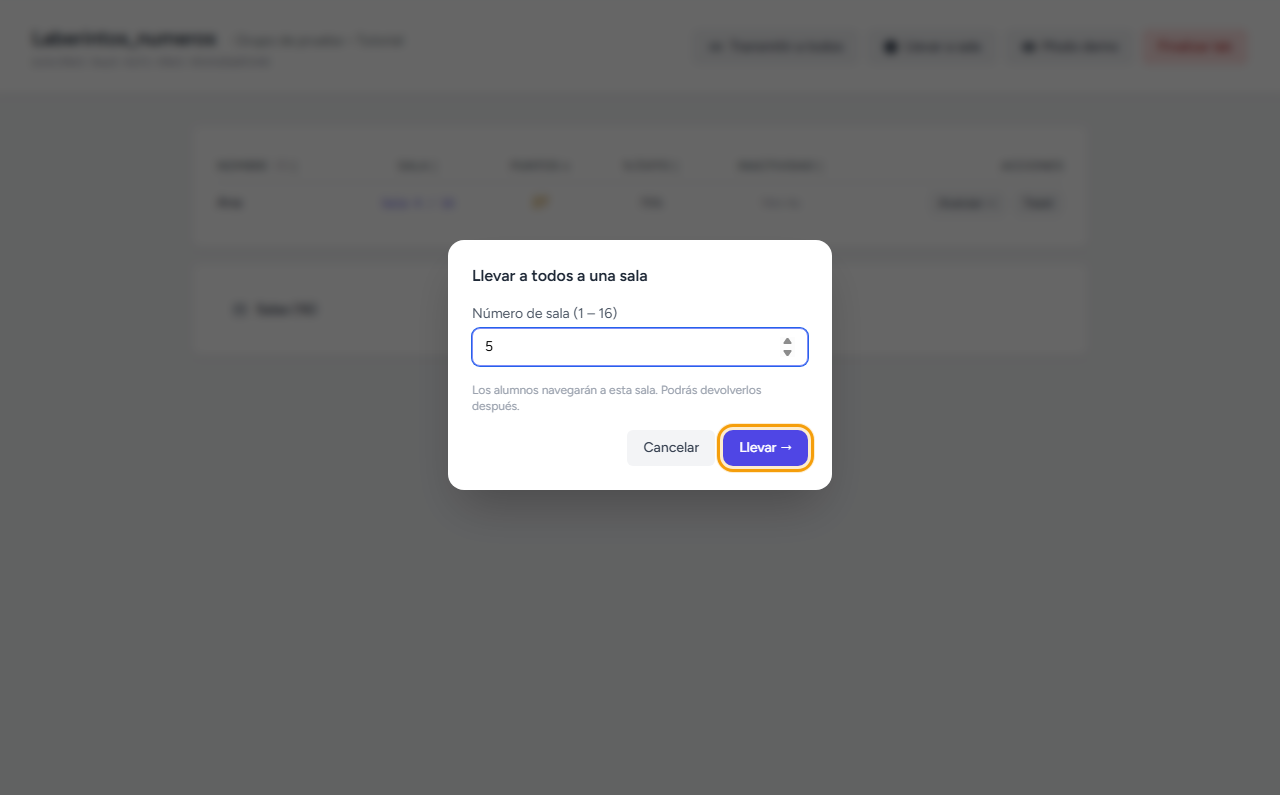
Si quieres que la clase salte junta a una sala determinada (por ejemplo, para retomar tras el recreo), Llevar a sala mueve a todos los alumnos activos de golpe.
Modo demo: explicad una sala juntos
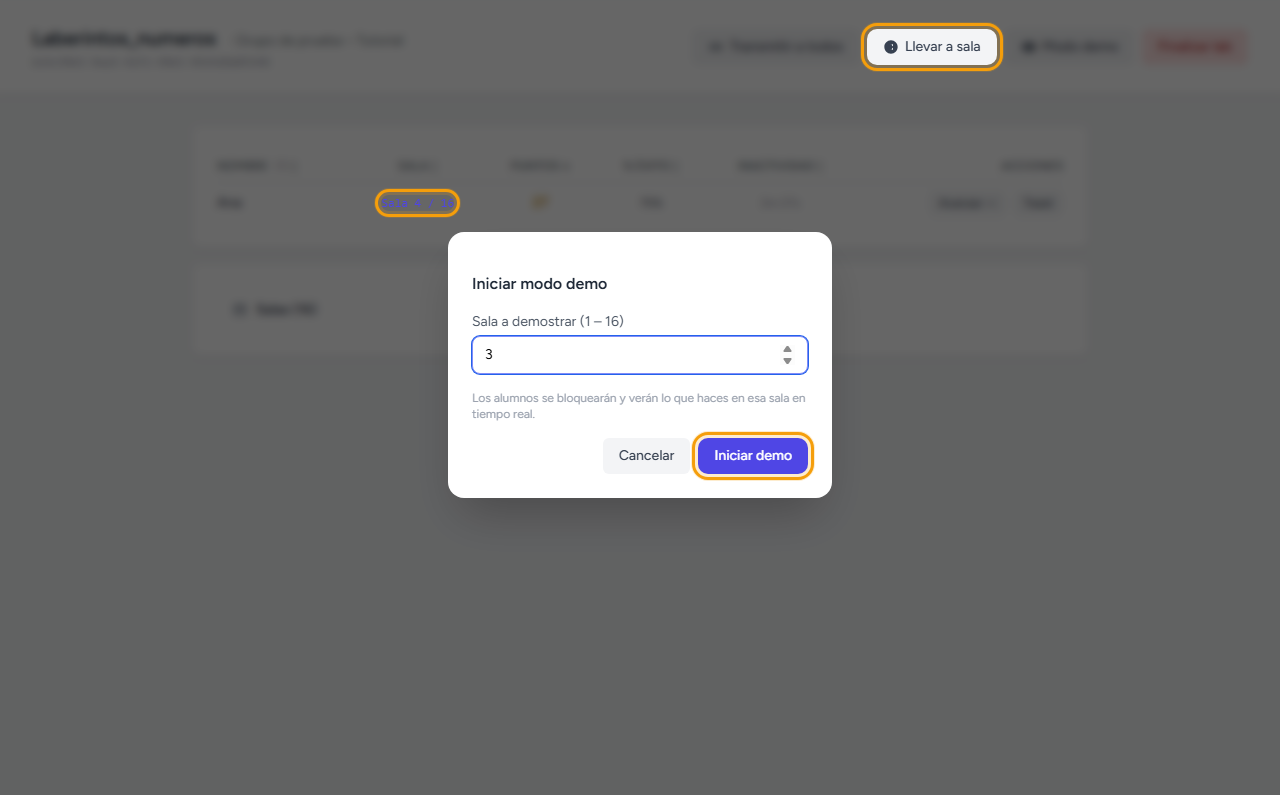
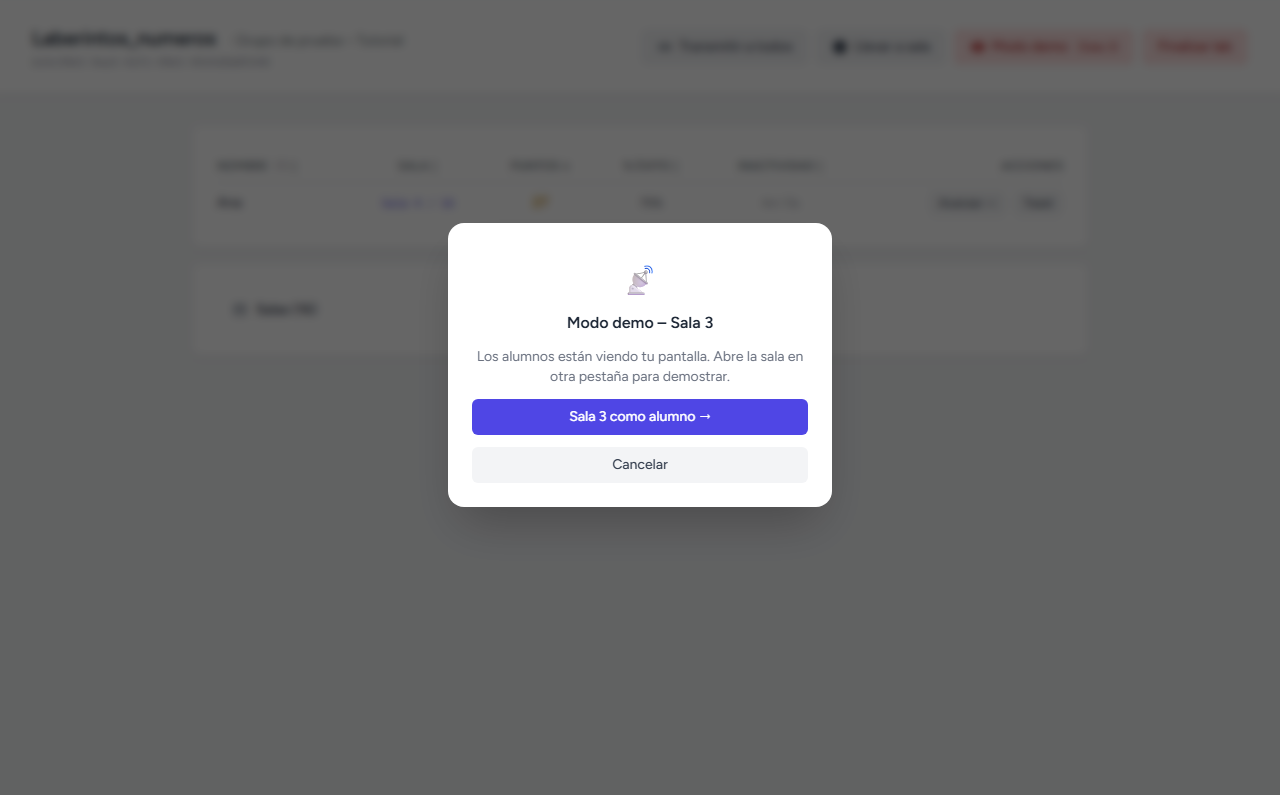
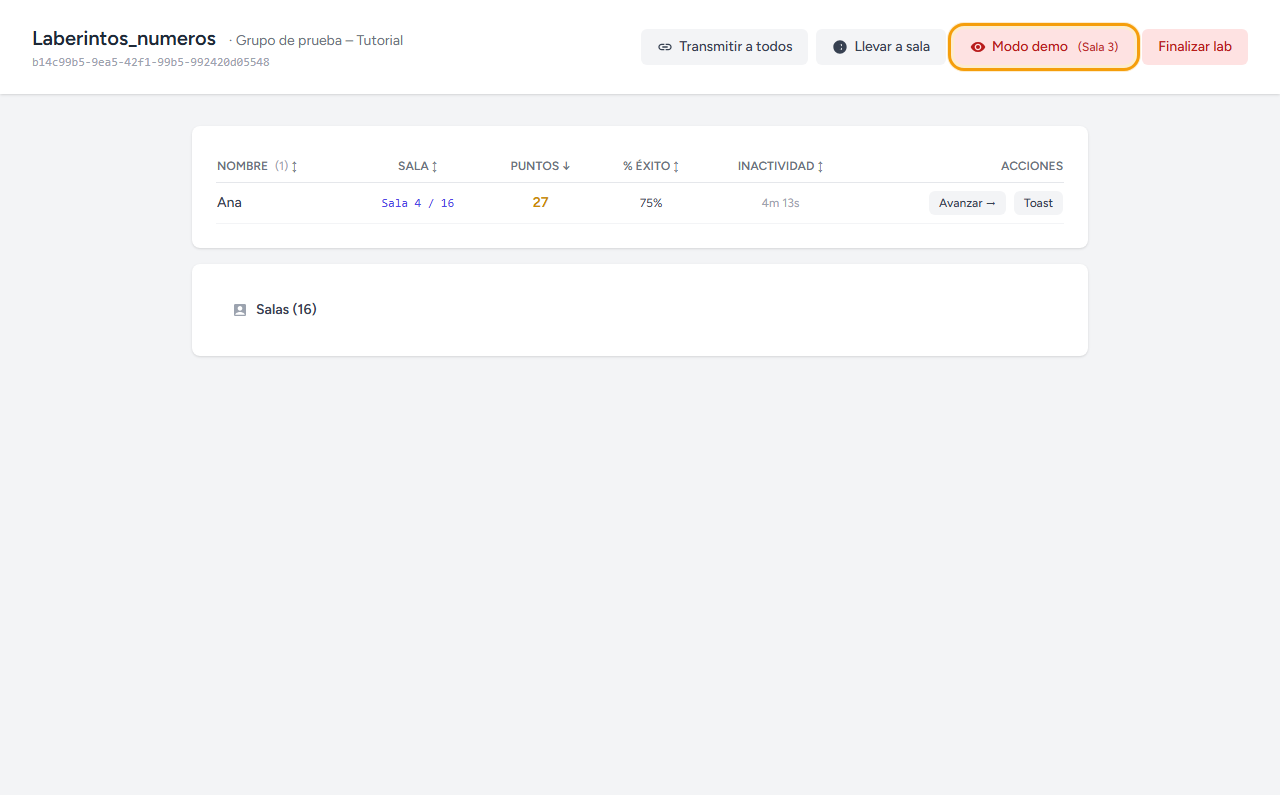
Modo demo bloquea a todos los alumnos en la sala que elijas, para que la exploréis a la vez mientras tú la proyectas desde tu propia pantalla — el enlace "como alumno" te lleva a esa sala en una pestaña nueva. Cuando sales de la sala, MathGames te deja elegir: devolver a cada alumno a la sala en la que estaba, dejarlos a todos en la sala de la demo para que sigan explorándola, o cancelar.
Los resultados quedan en la ficha del grupo
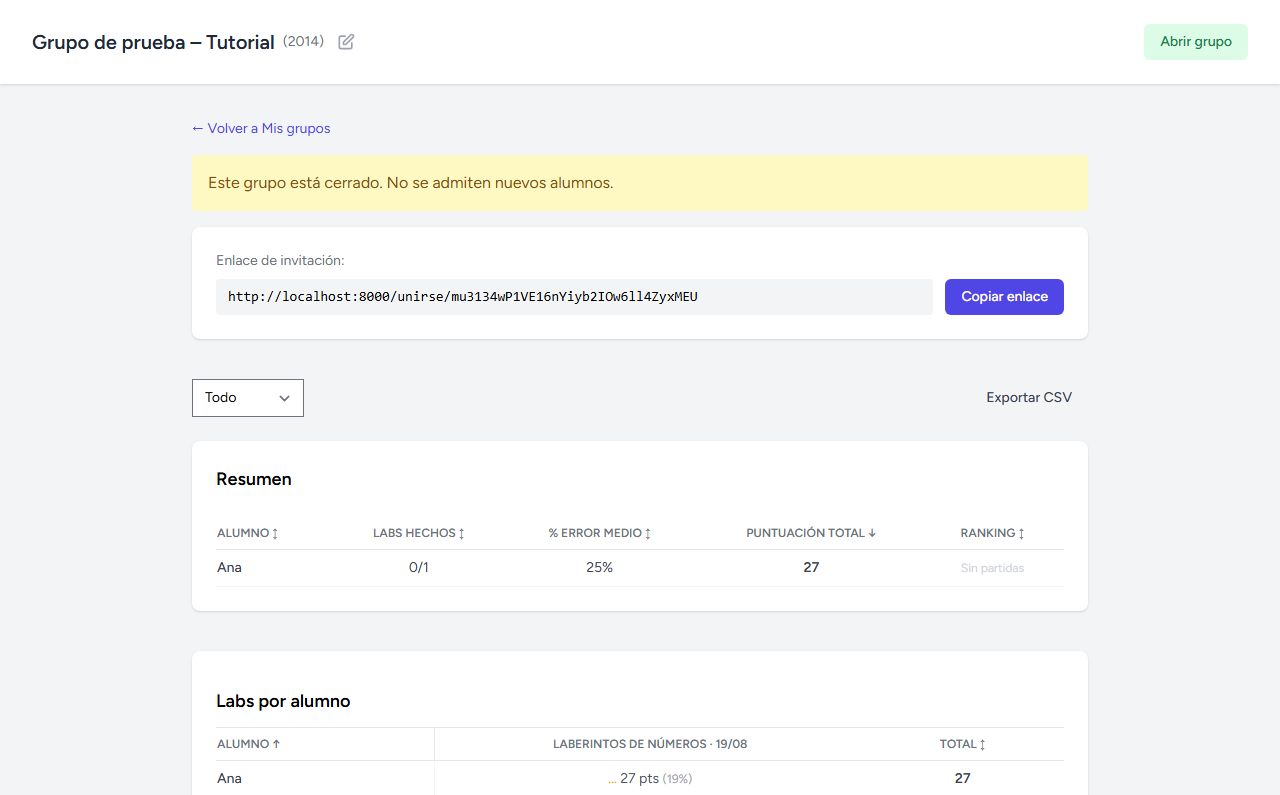
Tanto durante la sesión como después, la ficha del grupo (en Mis grupos) resume el trabajo de cada alumno en cada lab: salas hechas, puntuación y % de error medio. También puedes exportarlo a CSV.
💡 Nota: los labs con una fase de diseño propio (como Laberintos o Poliminós) añaden además un botón Repartir retos, para repartir entre la clase lo que cada alumno ha diseñado.